
Help
How to use MedPanel Compliance
Short, plain instructions for MedPanel staff. New sections are added as each part of the app is released.
About the app
MedPanel Compliance is where MedPanel keeps its quality policies, procedures and forms, and uses them to answer clients’ compliance questionnaires. It is for MedPanel staff only.
Today you can use:
- Drive — find, open, upload and update documents.
- Chat — ask questions about MedPanel’s documents and get answers with their sources; chats are saved to continue later.
- Questionnaires — answer clients’ questionnaires from those documents, check and approve every answer, and create the files to send back.
- Knowledge base and Company profile — the facts about MedPanel that aren’t in a document, kept in one place so every client gets the same answer.
Gaps are being added next, and this page will explain them when they arrive.
Signing in
Only people an administrator has added can sign in. There are two ways:
- Sign in with Microsoft (once your administrator has switched it on): click the button, choose your MedPanel Microsoft 365 account, and you’re in. Only accounts in MedPanel’s Microsoft organization work, and only if you’re on the list — otherwise you’ll see “isn’t approved to use this app”.
- Email and password: as below.
- Open the app’s web address in your browser. Your administrator will tell you what it is.
- Enter your work email, for example name@medpanel.com.
- Enter your password. Click Show if you want to check what you typed.
- Click Sign in. You will see a welcome page with your name and role at the top.
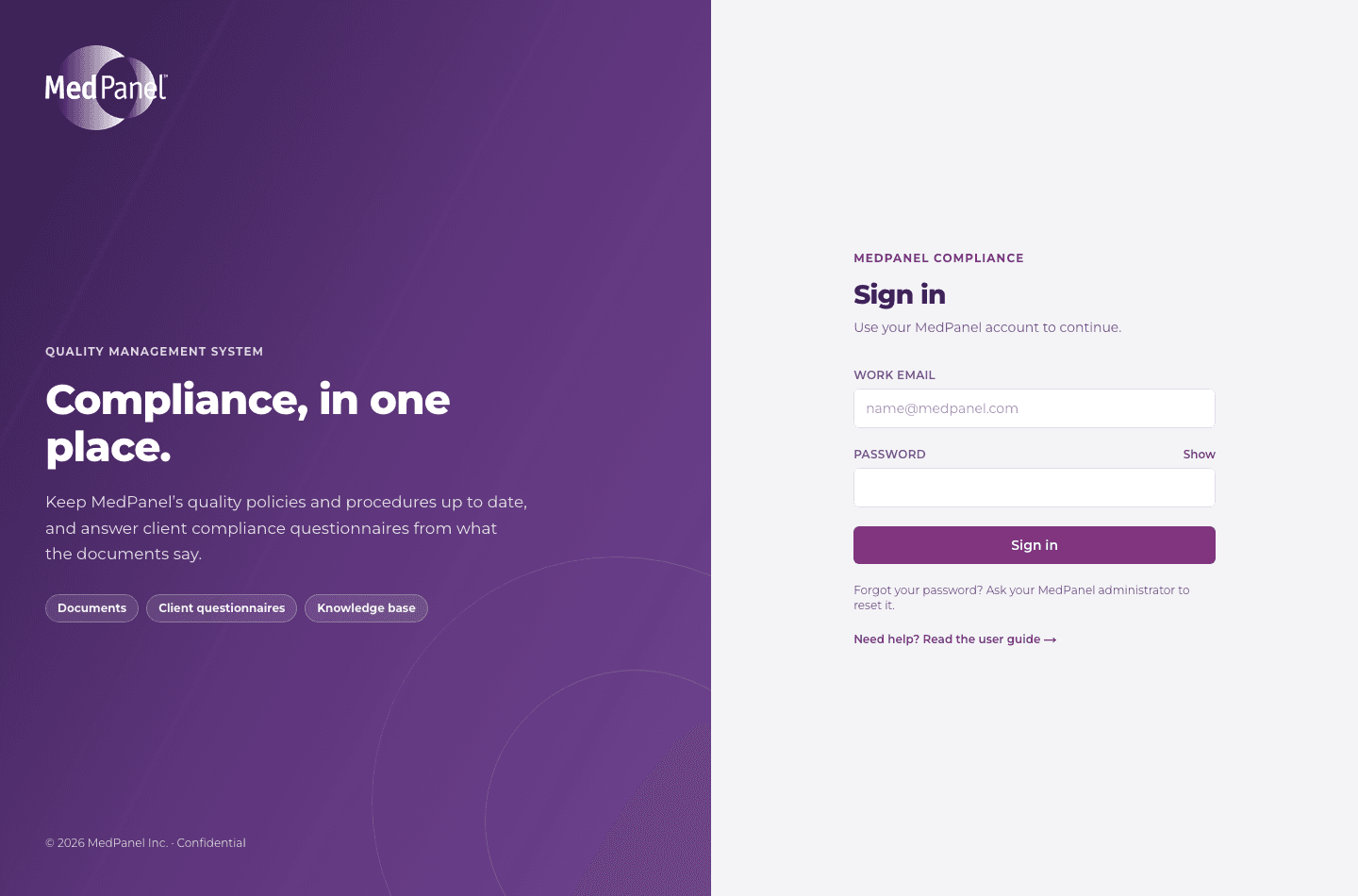
If you see “Email or password is incorrect”, check the email for typos and type the password again. Your email stays filled in.
You stay signed in for up to 12 hours on the same computer and browser. After that you are asked to sign in again.
Passwords and locked accounts
A good password keeps MedPanel’s and our clients’ information safe.
- At least 12 characters.
- Include upper-case and lower-case letters and at least one number.
- Don’t reuse a password from another website, and never share it — not even with colleagues.
After 5 wrong passwords in a row, your account is locked for 15 minutes. This stops anyone guessing their way in. Wait and try again, or ask an administrator to unlock it.
Forgotten your password? Ask your administrator to reset it. The app never emails passwords.
Signing out and staying safe
Click Sign out at the top right when you finish, especially on a shared computer.
- Lock your computer when you step away.
- Don’t download documents to personal devices.
- Every sign-in, failed attempt and sign-out is recorded, so administrators can spot misuse of an account.
Drive: your documents
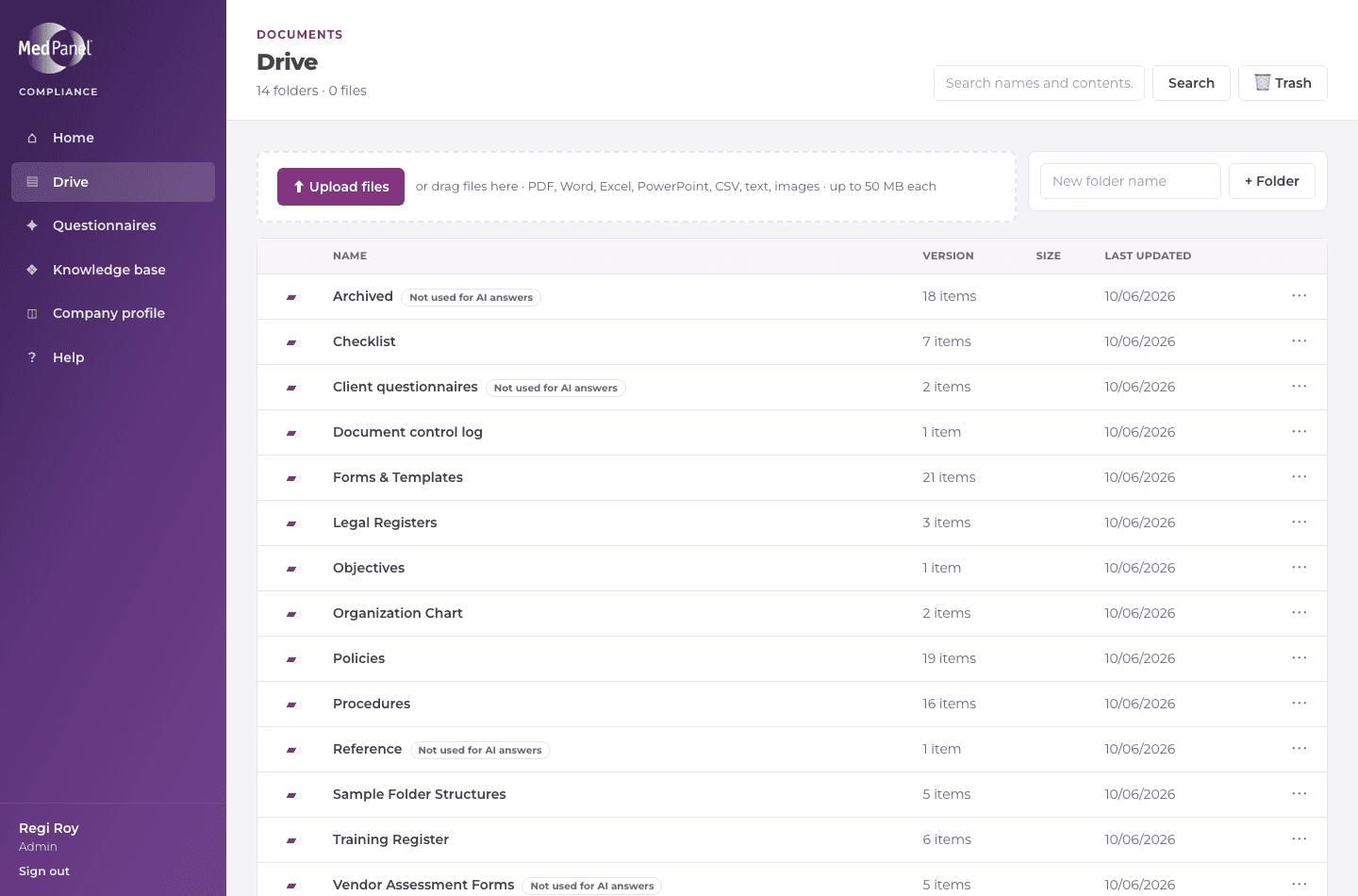
Drive holds all of MedPanel’s compliance documents, in the same folders as before (Policies, Procedures, Forms & Templates and so on). Click Drive in the menu on the left.
Find and open a document
- Click a folder to open it, and a file name to see it. The path at the top (for example Drive › Policies) takes you back.
- PDFs open right in the page. Word and Excel files show their text and tables; click Download for the exact layout.
- To find a file, type in the search box at the top of Drive. You see the files whose name matches, and below them the pages inside documents that contain your words, with the words highlighted. Put a phrase in quotes to find it exactly, for example "business continuity".
Add documents
- Open the folder, then click Upload files — or drag files onto the dotted box. You can add several at once.
- PDF, Word, Excel, PowerPoint, CSV, text and image files are accepted, up to 50 MB each.
- To make a new folder, type its name in the box at the top right and click + Folder.
Update a document (new version)
- Open the file and click Download.
- Make your changes in Word or Excel and save.
- Back on the file’s page, click Upload new version above the document: choose your saved file and say briefly what changed.
Every earlier version is kept: click Versions above the document to see who uploaded each one and when, and to download it. These panels open at the side only when you click them; close them with × or the Esc key so the document gets the whole screen.
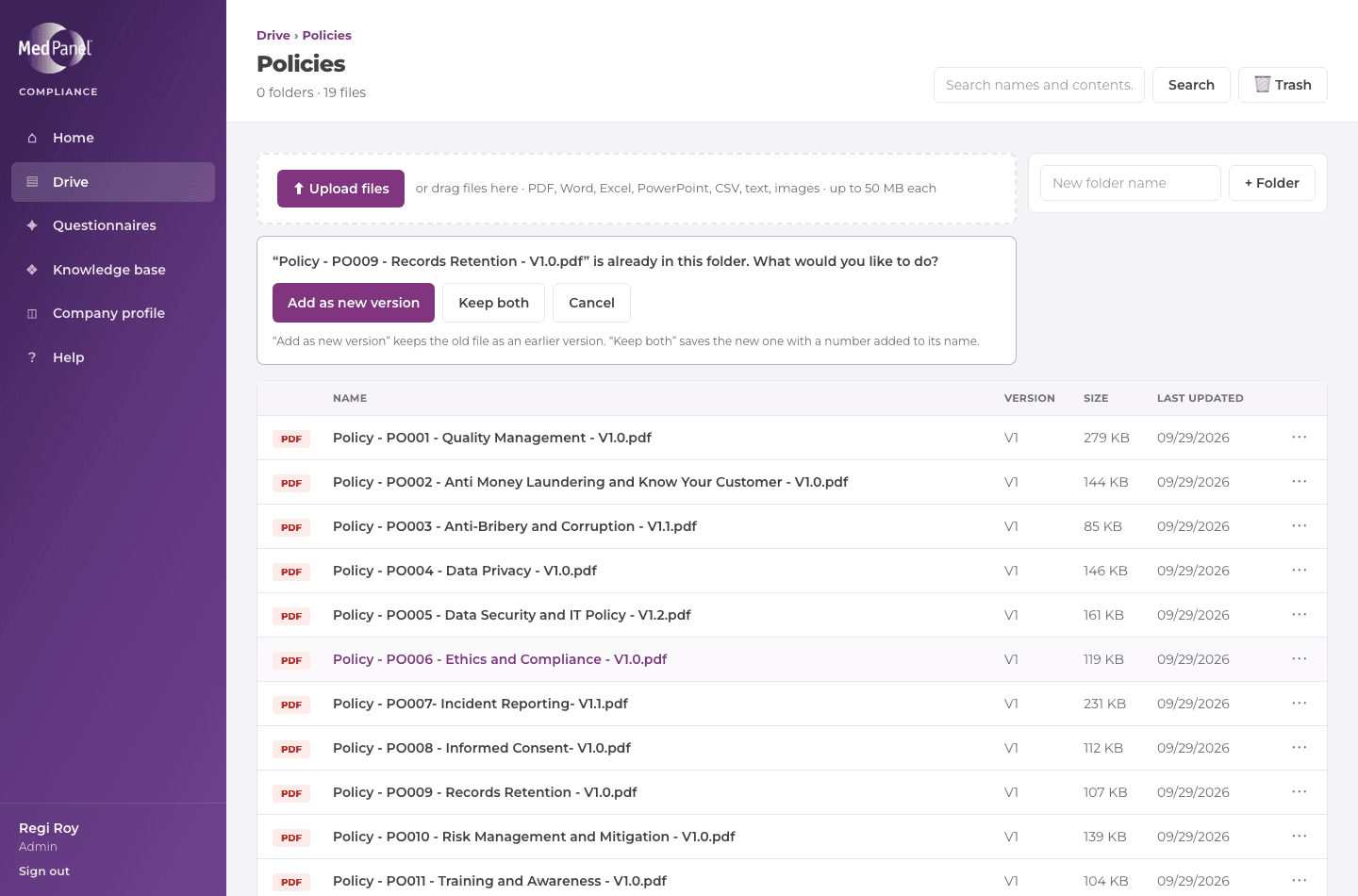
If you upload a file whose name is already in the folder, Drive asks what you want:
Rename, move or delete
- Click ⋯ at the end of a row, or click Rename / Move / Trash on a file’s page, to rename it, move it to another folder, or move it to Trash.
- Deleting puts things in Trash, not away for good. Open Trash (top right of Drive) and click Restore to put them back where they were. Deleting a folder takes everything inside it, and restoring brings it all back.
- Only an administrator can delete something from Trash permanently.
Viewers can open and download files but can’t upload, change or delete them. If you need to, ask an administrator to change your role.
Gaps
Gaps shows what MedPanel’s documents are missing, and keeps track of who is fixing it. Click Gaps in the menu. It has four tabs:
- Register — the gaps being worked on, each with an owner, a due date and a status (Open, In progress, Resolved, Accepted). Overdue gaps are shown in red, here and on Home. Filter by status, owner or where the gap was found. + Add gap adds one by hand — for example an auditor’s remark.
- Requirements — each requirement of the standard MedPanel follows, and whether the documents cover it: Covered, Partly covered (with what’s missing) or Not covered. Check all (or Check on one) has the AI read MedPanel’s documents and quote the passages that cover it — it never makes up coverage. You can leave the page while it runs. Mark requirements that don’t apply to MedPanel with Doesn’t apply.
- Document health — automatic checks, no AI: reviews overdue or due within 30 days, the same document twice in Drive, documents mentioned in others but missing from Drive, differences between Drive and the Document Control Log, and file names without a code or version.
- From questionnaires — client questions the documents answered only partly or not at all. A question clients keep asking usually means a document is missing something.
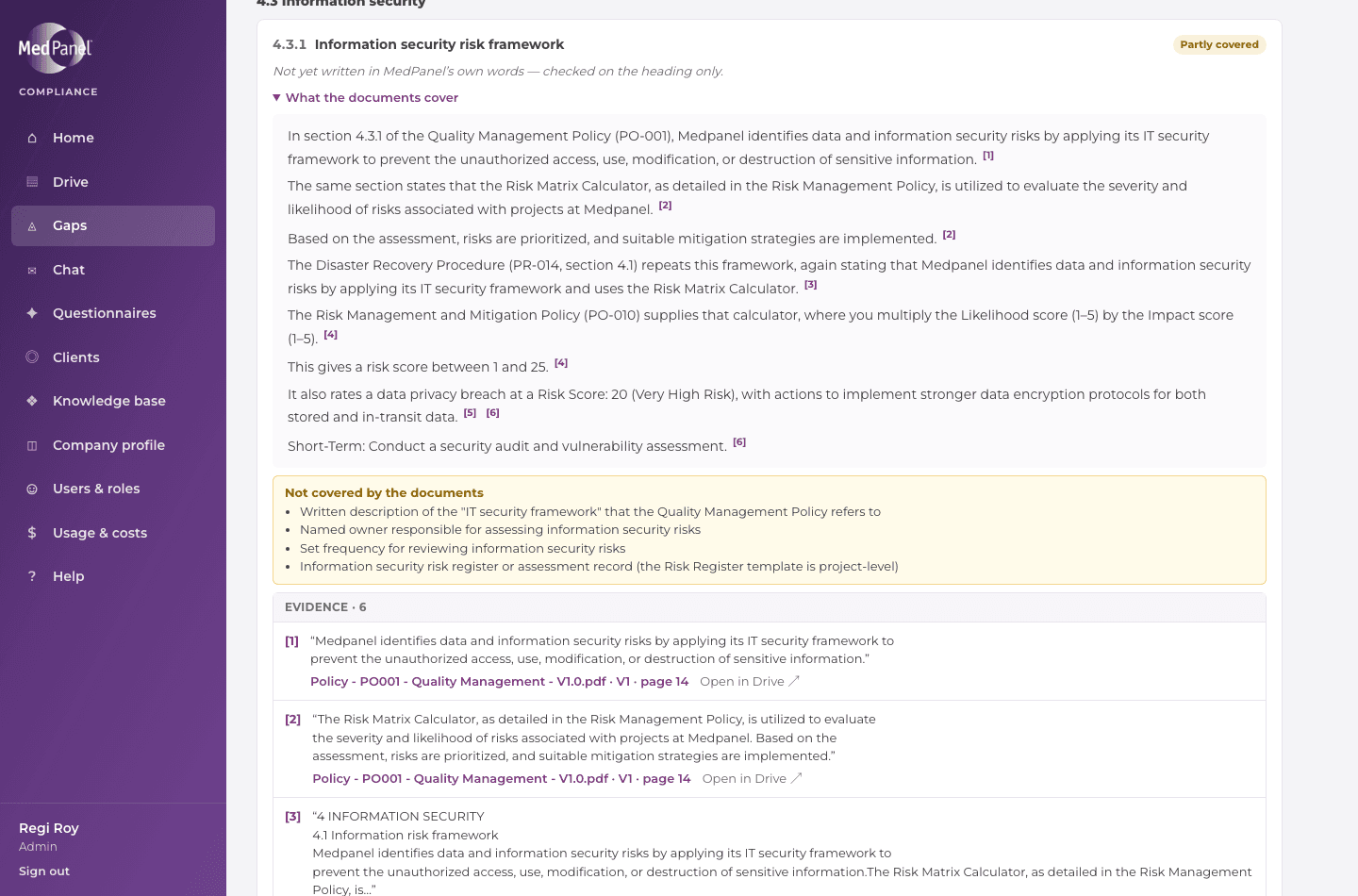
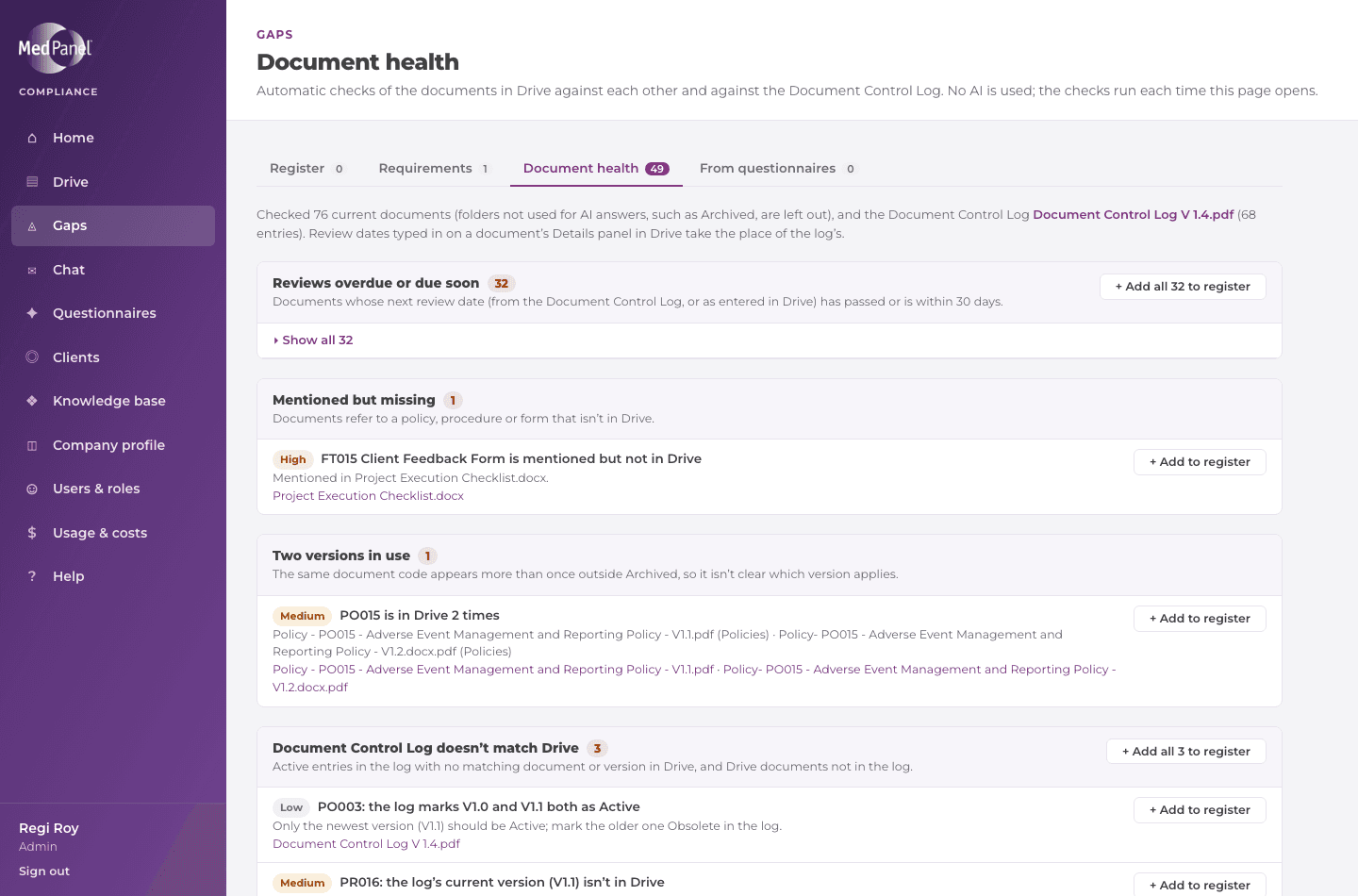
Anything found on the last three tabs has + Add to register (or Add all). It is added only once; afterwards it shows In the register →.
Working on a gap
- Open a gap to change its owner, due date or severity, link the documents that need changing, and add notes. Start working on it marks it In progress.
- Mark as resolved needs a line on how it was fixed (e.g. which document was updated). Accept as it is needs the reason. Both stay in the register as a record; Reopen brings a gap back.
- Every change is kept in the gap’s History, with who made it and when. Archive is for gaps added by mistake.
Gaps in Drive
- Documents with open gaps show a red ◬ open gap badge in folder lists. On the document, the Gaps button lists them and lets you log a new one.
- Details shows the document’s code, version, owner, approval date and next review — from the Document Control Log, or typed in with Change the details (what you type is used instead of the log).
The standard is licensed to one person, so the app keeps only its clause numbers and headings. Write what each requirement asks for in MedPanel’s own words (✎ Write it in MedPanel’s own words) — the check is more precise with them. Never paste the standard’s text. A check costs about $1 for the first requirement and a few cents for each one after it.
Chat
Ask a question in your own words and get an answer taken only from MedPanel’s documents (and the knowledge base), with the exact words and page it came from. Click Chat in the menu.
- Type your question at the bottom and press Enter (Shift+Enter starts a new line), or click one of the example questions. While it works you’ll see “Reading MedPanel’s documents…”; an answer takes about 10–40 seconds.
- Each answer says whether the documents answer it, only partly (with what’s missing), or not at all — nothing is made up. The small numbers [1] and the Sources list show where each sentence comes from; click one to see the page.
- Copy answer copies just the answer; Copy with sources adds the quoted passages and the documents they’re from.
- Ask follow-ups in the same chat (“Which policy says that?”) — it remembers the earlier questions.
- Every chat is saved on the left, newest first, named after its first question. Click one to read it again or carry on later; search them with the box at the top; rename or delete a chat with ⋯. + New chat starts a fresh one.
- Your chats are private — other people can’t see them.
- If an answer couldn’t be found (for example the AI service was unavailable), the reason is shown with a Try again button.
Client questionnaires
Clients send questionnaires as Excel or Word files. The app reads the questions, finds the answers in MedPanel’s documents only, lets you check and approve every answer, and then creates the files to send back. Click Questionnaires in the menu.
The questionnaires list
Each row shows the client, the questionnaire’s title, its status, how many items are approved, the due date, and who added it. Click anywhere on a row to open it:
- In progress (Checking questions, Finding answers, In review) — opens the step you’re on. The Continue → button does the same.
- Completed (Approved, Delivered) — opens its documents in Drive: the client’s file and the response files. Answers & files opens the questionnaire’s Finish step instead.
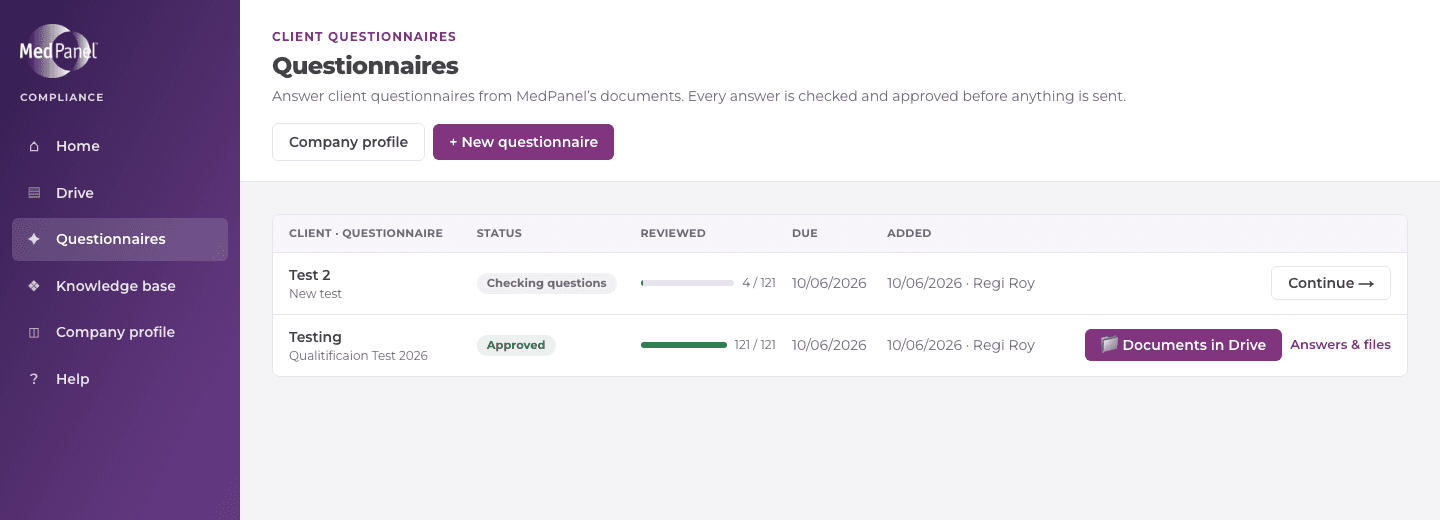
Add a questionnaire
Click + New questionnaire, choose the client from the drop-down (or + New client… to add one there and then — it’s saved to the client directory), check the due date, and drop in the client’s file. The title is filled in from the file’s name (for example “Sample Vendor Questionnaire”); type over it if you want a different one. Excel (.xlsx) files are filled in at the end; for Word and PDF files, the answers go into MedPanel’s own response document. The questionnaire gets its own folder in Drive straight away, holding the client’s file.
After you click Upload and read questions, a progress screen shows each step as it happens:
- Uploading the client’s file — with a percentage.
- Reading the questionnaire — how many questions, sheets, company facts and requested documents were found.
- Matching — how many company facts were filled from the Company profile, and how many requested documents were matched to a Drive file.
- Finding answers in MedPanel’s documents — a progress bar with the time left, the questions being read right now, and each answer as it comes in (green answered, yellow partly answered, red no answer) with the document it came from.
When everything is done the Summary opens by itself. A full questionnaire takes a few minutes; click Continue in the background if you’d rather not wait — the answers keep coming in.
With Find answers straight away unticked, the screen stops after matching and opens the Summary, where you start it with Find answers when you’re ready (useful if you want to check or adjust what was read first).
Step 1 · Summary
Instead of a long list of questions you see a summary. The numbers fill in as the AI reads the documents (a full questionnaire takes a few minutes; you can start reviewing straight away):
- Answered — the documents answer the whole question.
- Partly answered — part of the question isn’t covered by the documents.
- No answer — the documents don’t answer it: write the answer yourself, or mark it N/A.
- Not answered yet — still to be looked up. If the connection dropped, click Find answers again; only the missing ones are looked up.
Click a number to review just those questions. The summary also shows how many company facts are filled from the Company profile, how many requested documents have a Drive file, and any items marked TODO. Then choose how to review — All questions on one page or One question at a time (quiz mode) — and click Start review.
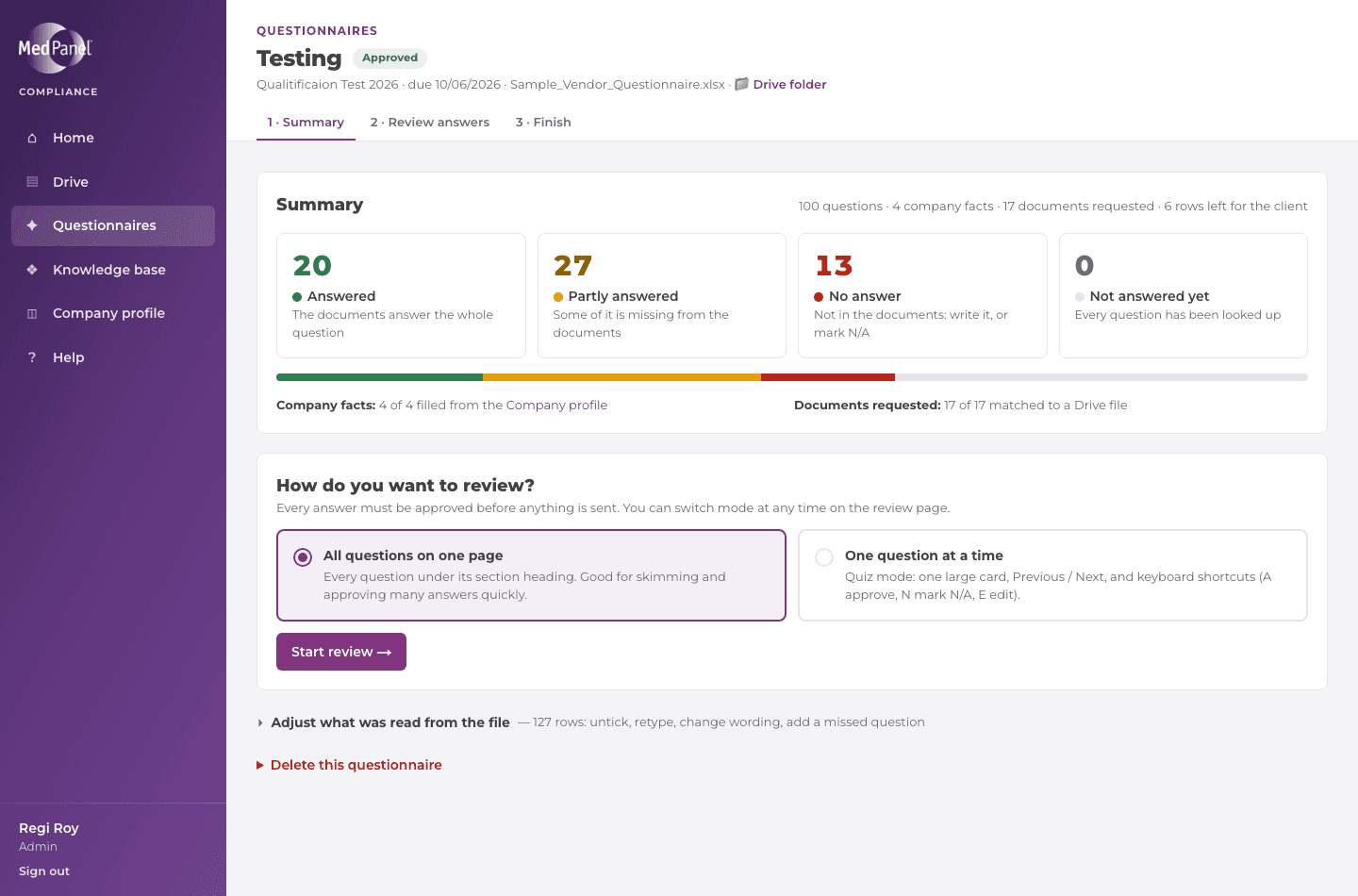
If something was read wrongly, open Adjust what was read from the file at the bottom: untick rows MedPanel shouldn’t answer (rows “to be completed by client” are unticked for you), change an item’s type, correct its wording, add a missed question, or pick the right columns of a sheet.
Step 2 · Review answers
Switch between All on one page (questions under their section headings, each showing how many are approved) and One at a time (one large card with Previous / Next and a list to jump to any question) with the switch at the top; the app remembers your choice. In one-at-a-time mode you can use the keyboard: A approve and go to the next, N mark N/A, E edit the answer, ← → move.
Each card has a coloured edge, and the filters at the top use the same colours:
- Green — answered (from the documents, the Company profile, or a Drive file attached to a requested document).
- Yellow — partly answered.
- Red — no answer: nothing in the documents, an empty company fact, or no file for a requested document.
- Grey — not looked up yet, or N/A.
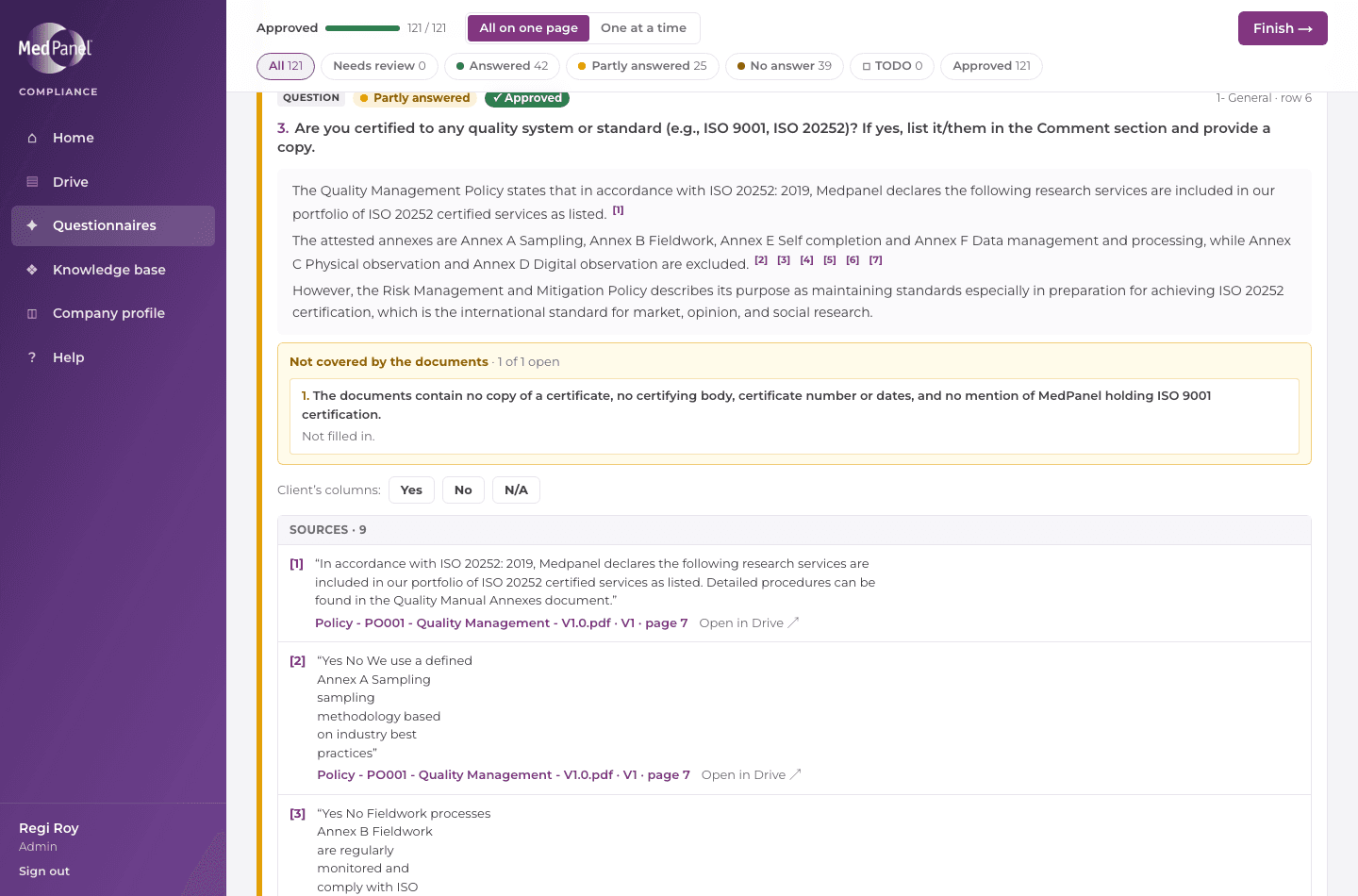
Each card shows:
- The answer, one sentence per line. The small numbers after a sentence, like [1], show which source it comes from — click one to see it. Click Edit answer to change the wording; nothing is saved until you click Save edit.
- Not covered by the documents (for a partly answered question): each missing piece of information on its own line, with a box. If you know it, type it and click Add to answer. It is added to the answer and saved to the knowledge base, so the next questionnaire that asks can use it.
- The client’s Yes / No / N/A boxes, where the file has them. When the documents clearly support yes or no, it is ticked for you and marked “Suggested from the documents” — click another to change it.
- Sources: the exact words each answer was taken from, with the file, version and page. Click the file name to preview the document at that page in a side panel (the quoted passage is highlighted in Word and Excel files); Open in Drive opens the full file page.
Then choose what to do with it:
- Approve — the answer is right and can be sent.
- Mark N/A — the question doesn’t apply to MedPanel.
- Approve as manual answer — the answer is right but comes from MedPanel’s own knowledge rather than the documents (for example you wrote it yourself). The app normally blocks sentences the documents don’t back up; this approves the answer anyway, labels it “Manual answer” in what is sent, records who approved it, and saves it to the knowledge base.
- Edit with Claude — tell Claude what to change (“make it shorter”, “mention how often backups are tested”). It rewrites the answer from the documents, with sources, as a suggestion: click Use suggestion or Discard. If the documents don’t support what you asked for, it says so instead of making it up.
- Search again — look the answer up in the documents again, for example after a new version was uploaded to Drive. The card shows a spinner while it searches (about 20–40 seconds).
- Mark as TODO — something still has to be done first (for example “Ask HR for the job description templates”); add a short note if you like. The item can’t be approved until you click Done — clear TODO, and it is listed under the TODO filter, on the Summary and on the Finish checklist.
- Reopen — undo an approval.
For a requested document, the card shows the Drive file that will be sent. Choose a different file from the list on the card, pick Not available if MedPanel doesn’t have it, or click Upload a file to add it to Drive (by default to the Client requested documents folder) and attach it.
When you change an answer, the app checks it against the sources. A sentence they don’t back up — including short made-up text — is shown under Not supported by the documents, and the answer can’t be approved until you remove it, explain where it comes from, or approve it as a manual answer. A bare “Yes”, “No” or “N/A” is always allowed.
Use the filters (Needs review, Answered, Partly answered, No answer, TODO, Approved) to focus on what’s left. Finish unlocks when every item is approved or marked N/A.
Step 3 · Finish
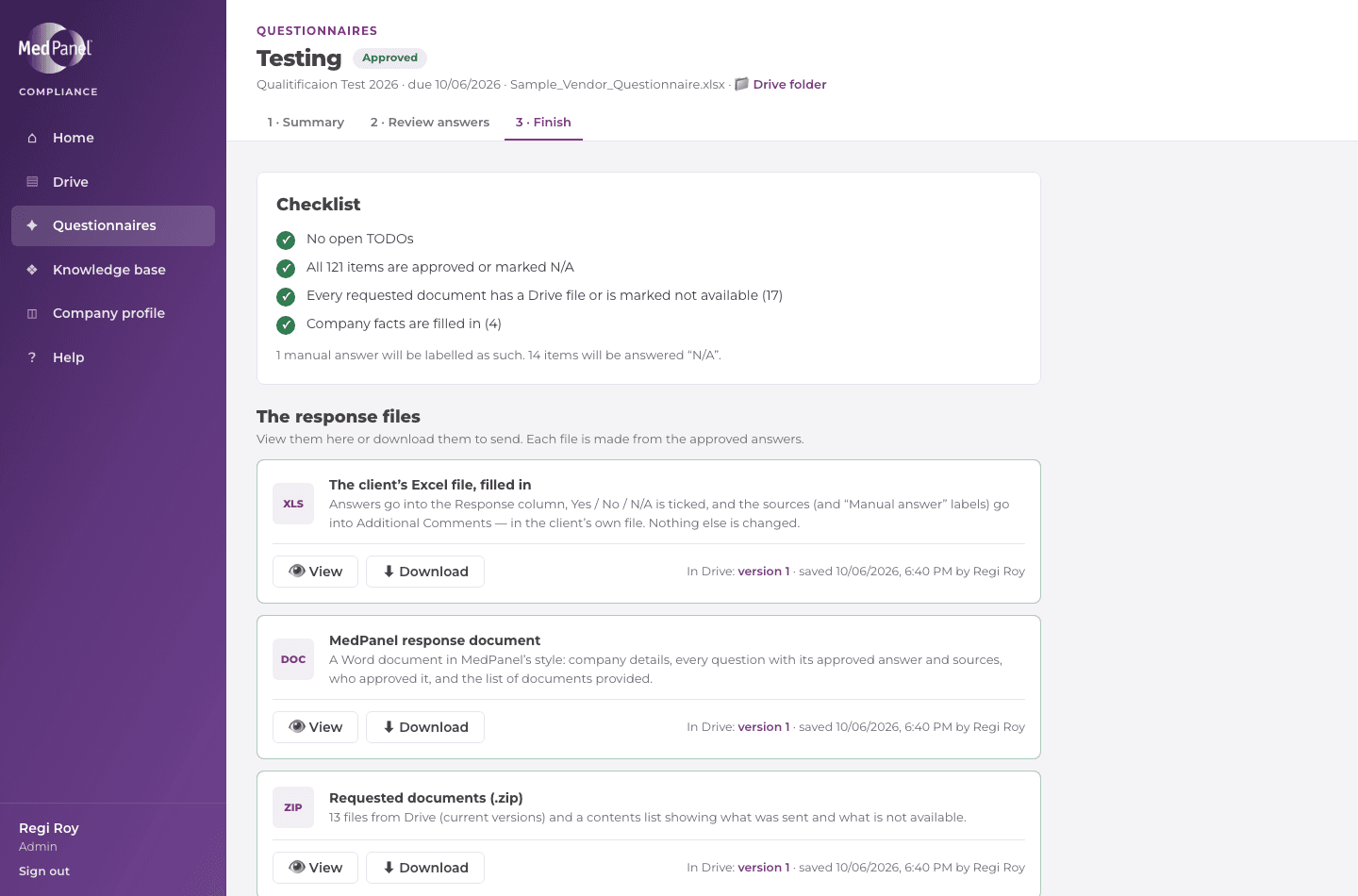
A checklist shows that there are no open TODOs, every item is approved or N/A, every requested document has a file (or is marked not available), and the company facts are filled in. When it’s all green, the three response files are ready:
- The client’s Excel file, filled in — answers in the Response column, Yes / No / N/A ticked, and the sources (plus “Manual answer” labels) in Additional Comments. Nothing else in the client’s file is changed.
- MedPanel response document — a Word document with the company details, every question and approved answer with its sources and approver, and the list of documents provided.
- Requested documents (.zip) — the chosen Drive files (current versions) and a contents list of what was sent and what isn’t available.
Click View to see a file in a panel on the same page, or Download to save it on your computer and send it. Each card also shows the version kept in Drive. After sending, click Mark as sent to client: the questionnaire is then listed as Delivered.
Everything in the zip goes to the client. Check that you haven’t chosen old versions or another client’s documents.
Each questionnaire’s Drive folder
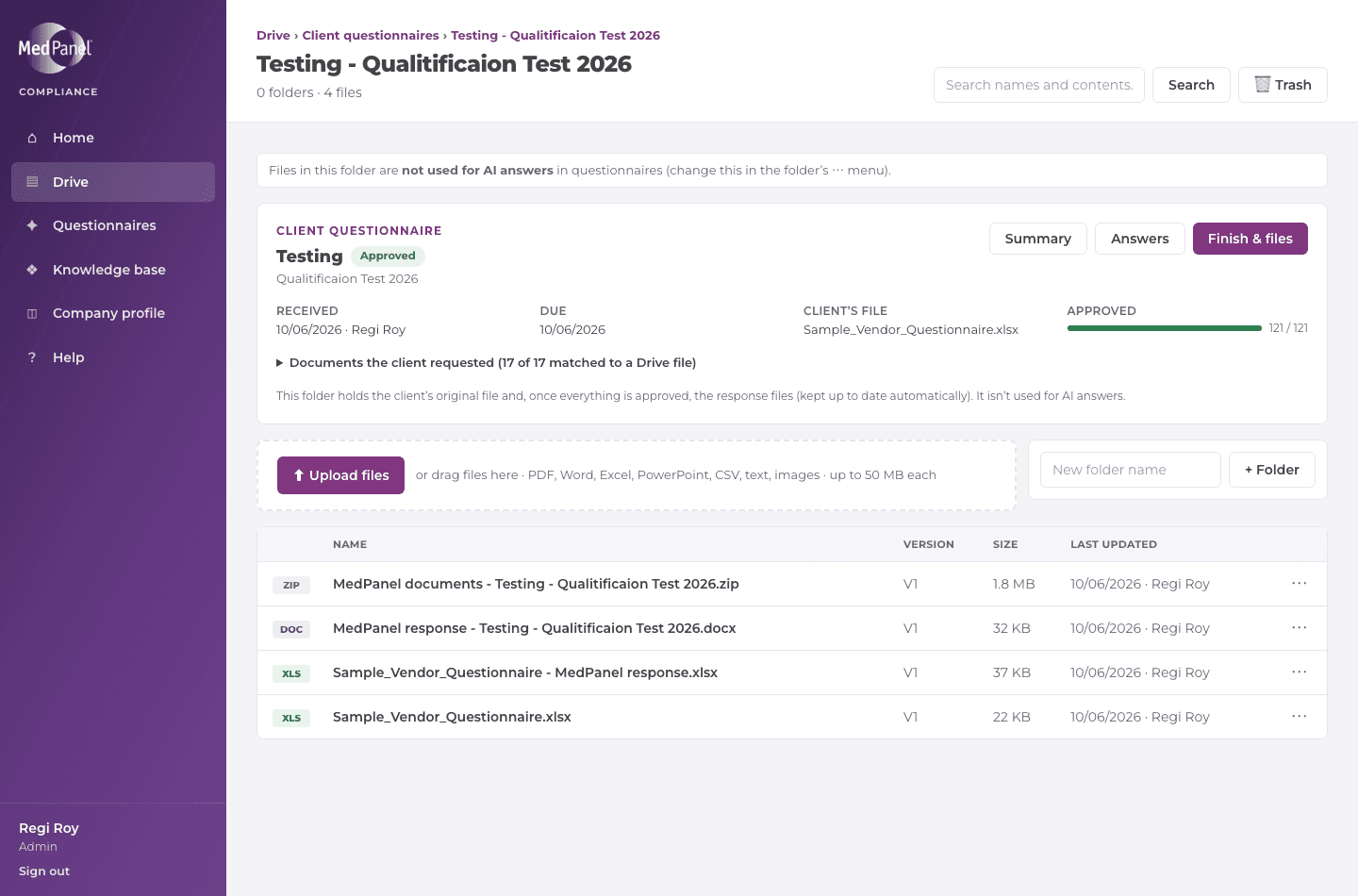
Every questionnaire has its own folder in Drive, under Client questionnaires › client name – title. You don’t need to save anything yourself:
- the client’s original file is put there when you add the questionnaire;
- the three response files are saved there automatically once everything is approved. If answers change and are approved again, the files get a new version — older ones stay in the file’s Versions.
The folder opens with a card showing the client, title, date received and by whom, due date, status, how many items are approved, buttons back to the questionnaire, and every document the client requested with a link to the Drive file chosen for it. In Client questionnaires, each folder shows its due date and status; a file in the folder says which questionnaire it belongs to; and Drive search finds a questionnaire’s folder by client name. Deleting a questionnaire keeps its folder. These folders aren’t used for AI answers.
Which documents the AI uses
All current documents in Drive, plus the knowledge base — except the Archived, Vendor Assessment Forms, Reference and Client questionnaires folders (old versions, past client answers, the licensed standard, and MedPanel’s own responses). Those folders show a “Not used for AI answers” label; administrators can change this in a folder’s ⋯ menu.
Clients
The client directory lists the clients who send questionnaires, with a contact number and email. Click Clients in the menu.
- Add a client with their name, contact number and email. Each name can be in the list only once.
- Click a number to call it, or an email to write to it. + Questionnaire starts a new questionnaire with that client already chosen.
- Under ⋯: edit the details (a new name also shows on their questionnaires), see the client’s questionnaires, or remove a client that has none.
- When you add a questionnaire, the client is chosen from this list — or added to it with + New client….
Everyone can see the directory; editors and admins can change it.
Knowledge base
The knowledge base keeps what MedPanel staff confirm while answering questionnaires — information that isn’t written in any document, such as the number of part-time employees. Click Knowledge base in the menu.
- A fact is added when you fill in a “Not covered by the documents” line, or approve a manual answer.
- The AI reads the knowledge base together with the documents. An answer that uses a fact cites MedPanel knowledge base as its source.
- Each fact shows who entered it, when, and for which client. Editors can correct or delete a fact; answers already approved keep their text.
Only enter facts you are sure of — they will be offered to future clients.
Company profile
The Company profile holds the approved facts about MedPanel — legal name, addresses, main contact, quality and privacy contacts, certifications and so on. Questionnaires answer their company questions from it, so every client gets the same, correct answer. Click Company profile in the menu.
- Everyone can see it; only administrators can change it. Each field shows who last changed it and when.
- When a field is changed, company answers that are not yet approved in any questionnaire update automatically.
- Empty fields are flagged, both here and on the questionnaire’s Finish checklist.
Activity log
The activity log lists what was done in the app and when: sign-ins, documents uploaded or changed, questionnaire answers approved, gaps, clients, settings and more. Click Activity log in the menu.
- You see your own activity. Administrators see everyone’s, and can open one person’s from Users & roles → ⋯ → View activity.
- Period: Today, Yesterday, Last 7 days, Last 30 days, Last week, Last month, All time, or your own dates (MM/DD/YYYY).
- Filters: area (Sign-in, Drive, Questionnaires, Gaps …), a single kind of action, words (a file name, a client, “signed in” …), and Only sign-in problems (wrong passwords, locked accounts, refused Microsoft sign-ins). Administrators can also filter by person.
- The coloured counts above the list show how much happened in each area; click one to see only that area. Click an entry’s area label to see only that kind of action; administrators can click a name to see only that person.
- Names link to what they’re about — the document, questionnaire, gap or client — while it still exists. Things that were deleted are still named.
- Download CSV saves the list as it is filtered, for Excel. Administrators also see the address (IP) each action came from.
The log can’t be changed or deleted from the app. Chats stay private: others see that you asked a question in Chat, not what you asked.
Users & roles (admins)
Administrators decide who can use the app under Users & roles in the menu. Nobody else can see this page.
- Add a person with their name, work email and role. For Microsoft sign-in use the email of their MedPanel Microsoft 365 account; a password is optional then. Until Microsoft sign-in is switched on, everyone needs a password.
- Change a role with the list in their row and click Save; it takes effect straight away.
- Under ⋯: change their name or email, set or change a password (this signs them out), remove their password so they use Microsoft only, unlink their Microsoft account, unlock them after too many wrong passwords, or disable them.
- Disable signs the person out everywhere and stops them signing in. People are never deleted, so their name stays on the work they did. Enable lets them back in.
- The list shows how each person signs in (Microsoft ✓ once they’ve used it, Password), when they last signed in, and whether they’re active, locked or disabled.
There must always be at least one active admin, and you can’t change your own role or disable yourself — ask another admin. Every change is recorded with your name.
AI models
The app can use AI models from several companies. Cheaper models cost much less per question; the most capable ones give the best answers. Whatever the model, answers still come only from MedPanel’s documents: every sentence must quote a document, and each quote is checked word for word — anything that doesn’t match is removed.
Choosing your model
- Your model is shown at the bottom of the menu on every page, under AI model (on a phone, at the top of the page). Pick another one from the list; it’s used straight away for everything you do — Chat, finding answers in questionnaires, Edit with Claude and Gaps checks.
- You only see the models an administrator has allowed you. The note under the list says what each is good for (e.g. “Lowest cost; check answers carefully”).
- A questionnaire run uses the model of the person who started it.
Setting up models (admins)
- Open AI models in the menu. Under Providers and keys, enter the key for Anthropic (Claude), OpenAI, Google Gemini, AWS Bedrock, or any other service with an OpenAI-style API, and click Save and test. Keys are stored encrypted and never shown again — only their last four characters. The test only lists the provider’s models; it costs nothing.
- Add a model: choose the provider, type or pick the model id, give it a name people will recognise, and enter its prices (from the provider’s pricing page) and context size. Claude Opus, Sonnet and Haiku are already in the list.
- Under ⋯ on a model: rename it, change its note, Make default, Switch off or remove it. The default model can be used by everyone; people whose model is switched off use the default.
- On Users & roles, the AI models column shows each person’s model; click it to choose which models they may use.
- Costs are shown per model on Usage & costs (Each model).
Try a new model on a sample questionnaire before relying on it, and compare its answers with Claude Opus. Cheaper models more often answer only partly; nothing they write is kept unless a document supports it.
Usage & costs (admins)
Finding answers uses Claude, Anthropic’s AI, which is paid for per use. Administrators can see what it costs under Usage & costs in the menu. No one else sees any cost information.
- At the top: a summary of the chosen period (cost, AI calls, questions answered, projects, cost per question) and the monthly budget — type an amount and click Save. Admins get a warning at 80% and 100%; nothing is ever blocked.
- Choose the period: Today, Yesterday, Last 7 days, Last week (Monday to Sunday), Last month, or a custom range (MM/DD/YYYY).
- Each day, each project (one client file, with who used AI on it and what it cost) and each user.
- AI prices at the bottom show where they came from and when. Fetch latest from Anthropic reads Anthropic’s pricing page and shows any changes to Apply or Discard; Edit manually lets you type prices yourself. New prices apply to AI calls from then on.
- On a questionnaire’s Summary, Finish step and Drive folder, admins also see what that project has cost, and an estimate before Find answers runs.
Roughly: the first question of a run costs about $1 (the documents are loaded into the AI’s short-term memory), and each further question a few cents.
Roles: what you can do
Each person has one role. Your role is shown next to your name at the top of the app.
| Role | What you can do |
|---|---|
| Viewer | See their own activity log. Open and download documents in Drive, and look at client questionnaires, their answers and files, gaps, the knowledge base and the Company profile. |
| Editor | Everything a Viewer can do, plus upload files and new versions, create folders, rename, move, and move things to Trash or restore them. Add client questionnaires, edit and approve their answers, mark items TODO, and correct or delete knowledge base facts. Add and work on gaps, check requirements, and change a document’s details. |
| Reviewer | Everything an Editor can do. (Later: approve documents.) |
| Admin | Everything, plus permanently delete from Trash, keep the Company profile up to date, choose which folders are used for AI answers, see everyone’s activity log, see what the AI costs (Usage & costs), set up AI providers and models, and manage users and the models each person may use. |
Items marked “Later” arrive with the next parts of the app.
Questions and help
- I forgot my password.
- Ask your MedPanel administrator to reset it. For security, the app cannot email you a new password.
- It says my account is locked.
- This happens after 5 wrong passwords in a row. Wait 15 minutes and try again, or ask an administrator to unlock it straight away.
- I can’t see something a colleague can see.
- Your role decides what you can do. If you need more access, ask an administrator to change your role.
- I was signed out on my own.
- Sessions end after 12 hours. Sign in again — nothing you saved is lost.
- Who do I contact?
- Your MedPanel administrator. Today that is Regi Roy (rroy@medpanel.com).
MedPanel Inc. · Confidential · Last updated 6 October 2026 (questionnaires, Drive folders, knowledge base)